
How to Make Blog Pagination with JavaScript
Learn to split a local article list into pages with a current-page indicator. Includes step-by-step instructions, complete code and a working example.
By New Delhi Website Technologies · Beginner-friendly guide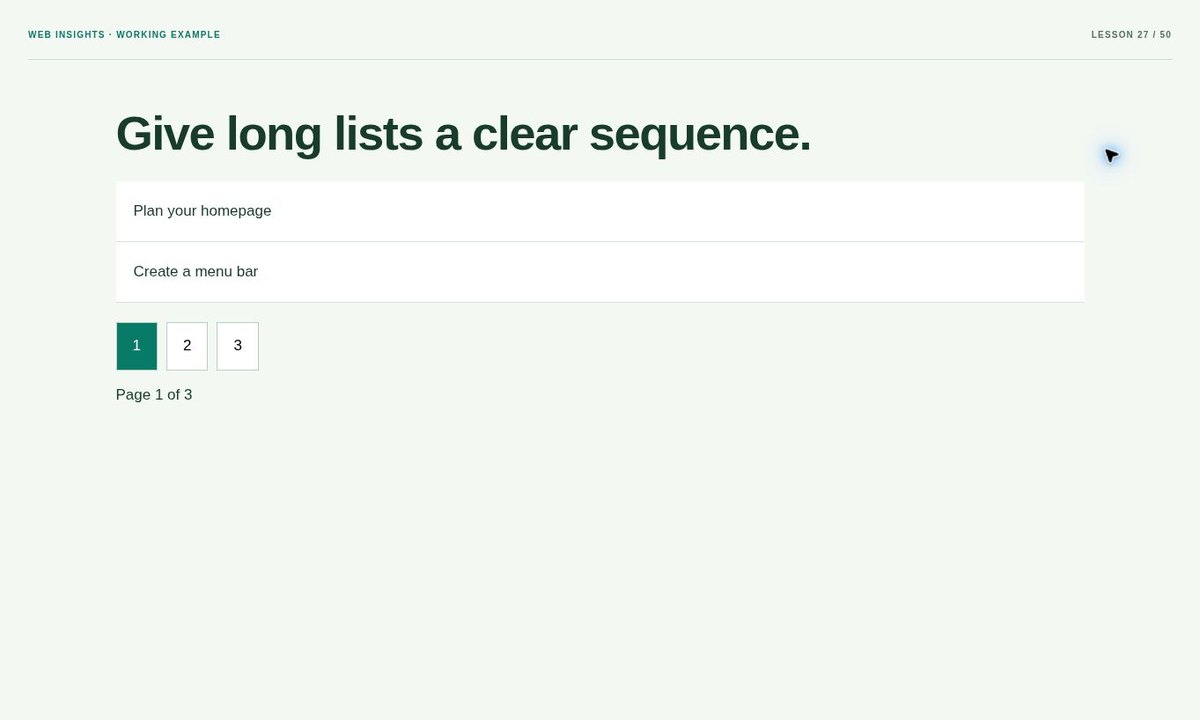
What you will build
In this tutorial, you will split a local article list into pages with a current-page indicator. The aim is a small, understandable example you can inspect and adapt, rather than a large template whose behaviour is difficult to trace. You can open the result before reading the code, then return to the instructions and connect each visible part to the element or rule that produces it.
This lesson assumes basic familiarity with opening a file in a browser, but does not require a framework, package manager or paid service. The example uses ordinary HTML, CSS and JavaScript. Business names, contact details and visual concepts are illustrative. Replace them with accurate information and check the intended destinations before using the example on a public website.
Prepare your files and browser
Create a new project folder and save the complete example as index.html. Use a plain-text code editor and UTF-8 encoding. If your operating system hides extensions, check that the filename does not end in .txt. Keep an untouched copy of the working example so you can compare it with your changes when troubleshooting. The downloadable demonstration includes a noindex directive to keep duplicate demos out of search; remove that directive only when the adapted page is intended for public indexing.
Open the file in a modern browser. Most examples work directly from a local file; use a local preview server if your environment restricts a browser feature or when you later add network requests. Keep the developer tools available. The Console can reveal script errors, while the Network panel shows whether the document, stylesheet or image was requested from the path you intended.
Step-by-step instructions
1. Derive the page count
Calculate the number of pages from the actual item count and chosen page size. Hardcoded page totals become inaccurate when articles are added or removed.
2. Calculate the visible range
Translate the one-based page number into zero-based array positions. Hide items outside the start and end range while keeping the original article data intact.
3. Mark the current page
Use native buttons for local state changes and aria-current for the selected page. If pages have separate URLs, use ordinary crawlable anchors rather than presenting local state as a separate document.
4. Coordinate search and paging
When a filter changes, reset or clamp the page number against the new result count. Otherwise the visitor can land on an apparently empty page even when matches exist.
Complete working HTML, CSS and JavaScript
The following source is the same document used by the working example. Copy the full block into a new HTML file for a clean starting point. The style element contains both the readable demo foundation and the topic-specific rules. Keep any script after the elements it reads so its selectors can find the required controls.
<!doctype html>
<html lang="en">
<head>
<meta charset="utf-8"><meta name="viewport" content="width=device-width,initial-scale=1"><meta name="robots" content="noindex,follow"><title>How to Make Blog Pagination with JavaScript — Working Example</title>
<style>
*{box-sizing:border-box}html{scroll-behavior:auto}body{margin:0;padding:32px;background:#f4f8f3;color:#173b2c;font:17px/1.65 Arial,sans-serif}main{max-width:1100px;margin:25px auto;padding:20px 0}h1{font-size:clamp(34px,4vw,55px);line-height:1.08;letter-spacing:-1.6px;margin:15px 0 25px;max-width:900px}h2{font-size:28px;line-height:1.25;margin:20px 0 14px}h3{font-size:21px}p{margin:14px 0 22px;max-width:70ch}a{color:#087b68;text-underline-offset:4px}button,summary{cursor:pointer}button,input,textarea,select{font:inherit}button{min-height:44px}a:focus-visible,button:focus-visible,summary:focus-visible,input:focus-visible,textarea:focus-visible{outline:3px solid #a25216;outline-offset:4px}.button{display:inline-block;padding:13px 21px;background:#087b68;color:white;border:0;border-radius:8px;text-decoration:none;font-weight:700}.eyebrow{font-size:12px;letter-spacing:1.7px;color:#087b68;font-weight:800}section{margin-top:25px}pre,code{font-family:monospace}pre{overflow:auto}img{max-width:100%}[hidden]{display:none!important}.demo-label{display:flex;align-items:center;justify-content:space-between;gap:20px;padding-bottom:18px;border-bottom:1px solid #c6dccd;font-size:10px;font-weight:700;letter-spacing:1.2px;color:#537260}.demo-label>span:first-child{color:#087b68}.demo-label+main{margin-top:20px}@media(max-width:600px){body{padding:20px}h1{font-size:36px;letter-spacing:-1px}h2{font-size:25px}}

#items{list-style:none;padding:0}#items li{padding:20px;background:white;border-bottom:1px solid #d3e2d8}#pages{display:flex;gap:10px;margin-top:22px}#pages button{padding:12px 18px;border:1px solid #b8d0c0;background:white}#pages button[aria-current]{background:#087b68;color:#fff}[hidden]{display:none!important}
</style>
</head>
<body>
<div class="demo-label"><span>WEB INSIGHTS · WORKING EXAMPLE</span><span>LESSON 27 / 50</span></div>
<main><h1>Give long lists a clear sequence.</h1><ul id="items"><li>Plan your homepage</li><li>Create a menu bar</li><li>Build a website footer</li><li>Design service cards</li><li>Add a contact form</li><li>Prepare for launch</li></ul><nav id="pages" aria-label="Article pages"></nav><p id="status" role="status"></p></main>
<script>
const items=[...document.querySelectorAll('#items li')],size=2;let page=1;const pages=document.getElementById('pages');function render(){const total=Math.ceil(items.length/size);items.forEach((item,i)=>item.hidden=i<(page-1)*size||i>=page*size);pages.replaceChildren();for(let n=1;n<=total;n++){const b=document.createElement('button');b.type='button';b.textContent=String(n);b.setAttribute('aria-label','Page '+n);if(n===page)b.setAttribute('aria-current','page');b.onclick=()=>{page=n;render();};pages.append(b);}document.getElementById('status').textContent='Page '+page+' of '+total;}render();
</script>
</body>
</html>
Understand how the implementation works
The HTML defines the task
The markup provides the content, relationships and controls. Read the element names before changing their appearance. An anchor moves to a destination; a button performs an action; a heading identifies a section. Preserve labels and IDs when adapting the sample, because visual styling alone cannot replace the relationship between a control and the content it affects.
The CSS controls the presentation
The demo foundation establishes readable typography, a comfortable content width and visible focus styles. The lesson-specific rules then create the component or preview. Change one value at a time and check the result. If a rule seems ineffective, inspect the matched selector and cascade instead of repeatedly adding overrides that hide the original cause.
The JavaScript connects state and feedback
The script selects elements from the existing document and changes a small amount of state when the visitor interacts. Follow the event handler from its control to the values it updates. Keep visible text, selected state and displayed content consistent. Use textContent for plain visitor-facing text, and do not insert untrusted input as HTML.
Test, troubleshoot and integrate
Topic-specific check: Visit every page, verify the visible range and return to the first page.
Common mistake: Local pagination does not create separately indexable page URLs automatically. Choose the architecture according to your discovery needs.
Review the page at a narrow viewport, a tablet-sized width and a larger desktop width. Use realistic long labels rather than only the short demonstration text. Zoom the text, follow links with the keyboard and confirm focus remains visible. If a component is placed inside a smaller card or sidebar, test that context separately from the full-width demo.
When integrating into an existing website, scope selectors to the component instead of copying broad demo rules over the entire production theme. Move shared rules into your normal stylesheet and preserve existing page IDs unless you also update their links. Back up the current version, publish only the intended files and open the final public URL to verify that paths and resources still work.
Content and SEO checks
Give the finished page a title and heading that describe its real subject. Write a concise description, use descriptive link text and add useful image alternative text where the image communicates information. Do not repeat every keyword variation in every paragraph. For a public guide, make the complete explanation available as normal HTML and confirm that its canonical URL represents the intended final domain.
Frequently asked questions
Can I use this example on a real website?
Yes, as a starting point. Replace demonstration content, inspect the links and scope the styles to your project. Test the resulting page in its actual layout and hosting environment. A small front-end demonstration does not automatically provide a server, secure authentication or message delivery where those features are needed.
Do I need a framework or paid plugin?
No framework is required for the example shown here. HTML, CSS and the small script included where needed are enough for this lesson. A larger product may justify additional tooling, but choose it according to the functionality and maintenance needs rather than adding dependencies before the basic behaviour is clear.
Why does my result look different after integration?
Your existing theme may set fonts, spacing or more specific selectors. Compare the standalone working example, inspect the computed styles and check resource paths. Confirm that element IDs still match the selectors used by any script. Fix the specific conflict instead of resetting the entire main website stylesheet.